
FlipArtify - 2D Draw Animation
CEM SOFTWARE LTDArt & Design
2.91.16K Reviews
- Version
- 1.6.4
- Installs
- 1.00M
- Age Rating
- Everyone
Screenshots
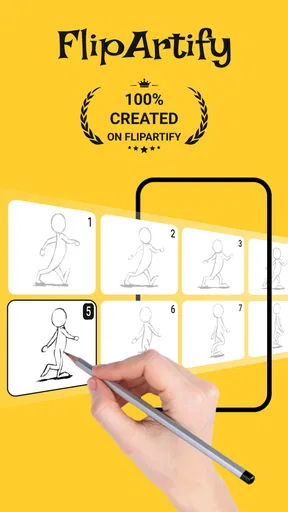
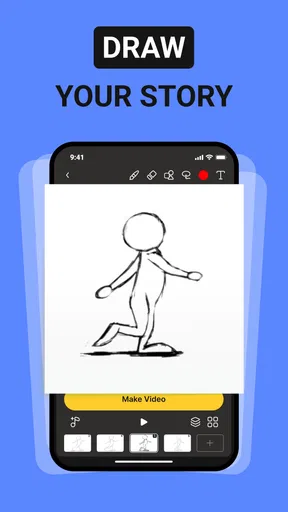
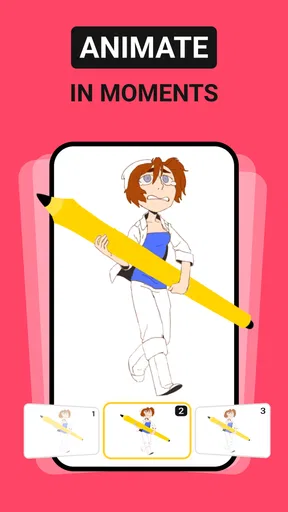
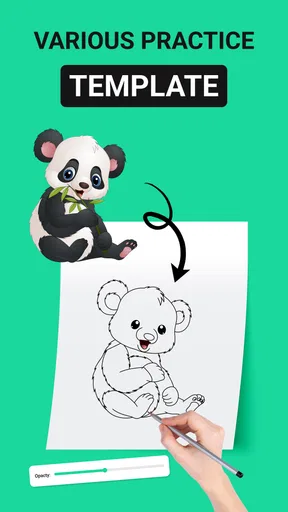
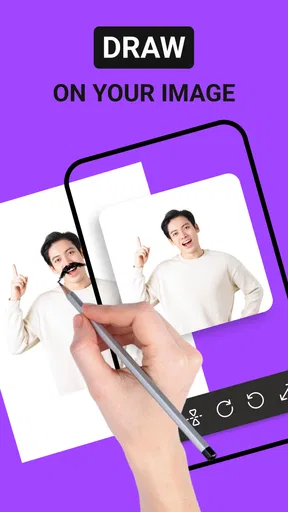
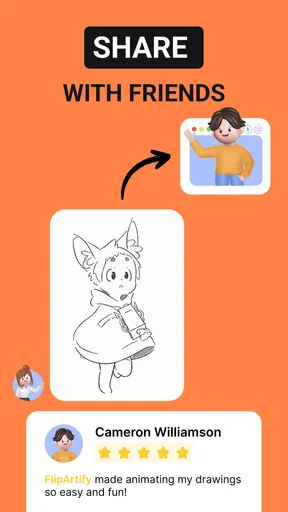
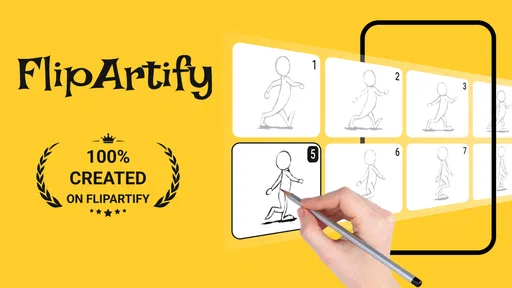
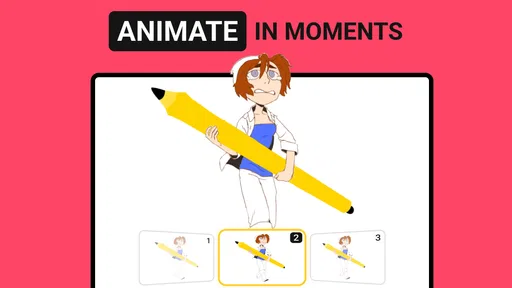
Our Review of FlipArtify - 2D Draw Animation
 Analysis by Appyee
I approached FlipArtify as a quick mobile animation studio rather than a full replacement for desktop illustration software. Its purpose is easy to understand: you draw a sequence of images, adjust the action from frame to frame, and turn a simple sketch into a moving idea. That makes it appealing when inspiration arrives away from a desk, although the experience depends heavily on how patient you are with small-screen drawing and the app’s occasional friction.
Developed by CEM SOFTWARE LTD, this free Art & Design app is aimed at Everyone and runs on Android devices using version 7.0 or later. The current release is 1.6.4. It has passed one million installs, while its average rating sits at 2.9 from around twelve thousand ratings and about one thousand two hundred written reviews. Those figures suggest a broad audience but also a noticeably mixed experience, so I would not treat the app as an automatic recommendation for every aspiring animator.
How the animation workflow feels on a phone
The most useful way to think about this app is as a visual notebook with motion built in. I found the idea of creating movement one drawing at a time more approachable than opening a complex timeline editor. A bouncing ball, a blinking face, a waving hand, or a rough character walk can begin as a very small exercise. The low barrier is important because animation often feels intimidating when a tool presents too many panels before you have made a single mark.
At the same time, drawing on a phone introduces a trade-off that is easy to overlook. Your finger covers part of the canvas, and precise lines demand more correction than they would with a stylus or a mouse. This is not necessarily a problem for loose sketches, but it becomes tiring when you want clean outlines, consistent proportions, or detailed backgrounds. I recommend starting with broad shapes and simple silhouettes instead of trying to produce polished illustration immediately.
The strongest workflow is to plan the movement before filling in detail. I usually begin with the first and last important poses, then add the drawings that explain how the subject travels between them. This prevents a common mobile-animation mistake: spending too much time decorating the first frame and discovering later that the motion has no rhythm. In FlipArtify, a rough sequence with clear changes is more satisfying than a beautifully drawn still image that barely moves.
The app works best when you treat each frame as a communication tool, not as a finished painting. That mindset also makes the smaller screen less frustrating. I would rather see a readable gesture, a clear change in position, and a believable pause than spend several minutes correcting tiny details that disappear once the animation plays.
Where connectivity enters the experience
The drawing itself feels like the central activity, but a mobile app is never used in a vacuum. Store access, app updates, optional purchases, and any sharing or export step can place you in situations where a connection matters. I would therefore avoid beginning an important animation immediately before a journey, class, or presentation unless I had already opened the project and checked that the parts I needed were available.
This is not a claim that every drawing action requires internet access. Rather, it is practical advice for avoiding surprises. If you are working between networks, launch the app while you still have a reliable connection, allow the project to settle, and test the exact action you expect to use later. A short trial animation is enough to reveal whether your current setup behaves as expected before you invest real time in a larger idea.
Connectivity also affects the emotional side of the workflow. A sketching app is most valuable when it lets you capture an idea at the moment it appears. If you have to stop and wait for a store check, an account step, or a connection-sensitive action, the creative impulse can disappear. For that reason, I see this as a tool to prepare in advance rather than one to depend on blindly in every low-signal location.
Using it in ordinary mobile situations
A realistic use case is a commuter noticing an interesting movement while waiting for a bus. Instead of trying to create a complete short film, they could make a tiny study: a character turns, a cup tips over, or a bird lifts its wings. The phone format suits these observations because the goal is not production polish; it is recording timing and movement before the idea fades.
Another good setting is a classroom or workshop. A student can use a short animation to explain a process that is difficult to show in a still diagram. A set of drawings showing a seed opening, a machine part moving, or a character changing expression may communicate more clearly than a paragraph. The Everyone rating also makes the app easier to consider for family creative activities, though younger users may still need help with patience, saving habits, and any purchase prompts.
I would be more cautious about using it during a long trip without preparation. Mobile networks can be inconsistent, batteries are limited, and a phone screen becomes uncomfortable when you are repeatedly zooming, correcting, and replaying. If you know you will be away from dependable connectivity, make a small test project first and confirm that the complete workflow you need behaves properly. That simple check is more useful than assuming that a drawing app will behave exactly like a paper notebook.
Screen size also changes how I recommend holding the device. Short sessions work well for quick gestures, but longer sessions benefit from a stable position and frequent pauses. If your hand is floating above the screen, line quality tends to suffer. I found it more practical to build an animation in focused passes: rough poses first, timing second, cleanup last. This reduces the temptation to constantly redraw the same frame while the overall sequence remains unfinished.
Recovering when a session goes wrong
Every frame-based project carries a simple risk: a mistake in one drawing can affect the rhythm of everything around it. When that happens, I would resist the urge to erase a large section immediately. First replay the sequence and identify whether the real issue is the drawing, the timing, or the transition between two poses. Sometimes a frame that looks awkward by itself works perfectly when viewed as part of the movement.
A safer recovery habit is to save or preserve a workable stage before experimenting with major changes. I would create a basic version with the essential motion, review it, and only then add extra details. If a later edit makes the animation worse, you have a clear point to return to rather than trying to reconstruct the original idea from memory. This is especially important on a phone, where accidental taps and hurried gestures are more likely than they are in a spacious desktop interface.
Connectivity can complicate recovery if you are relying on a store action, an update, or any online-dependent part of the experience at the wrong moment. My practical rule is simple: do not postpone all checking until the end of a project. Test the workflow early, keep the first version modest, and avoid making your only copy depend on a final step you have never tried. That approach does not make the app fail-proof, but it limits the amount of work exposed to a problem.
When an animation feels broken, I also recommend reducing it to a diagnostic loop. Remove visual distractions, use a simple subject, and check whether the movement reads in a few frames. If the basic loop works, rebuild complexity gradually. If it does not, the issue is probably in the spacing or pose changes rather than in the decoration. This is a useful animation lesson and a practical troubleshooting method at the same time.
Managing data, downloads, and in-app spending
The app is free to install, which makes experimentation easy, but it includes in-app purchases ranging from $2.99 to $29.99 per item. I would approach those purchases deliberately rather than tapping through them during a creative session. Decide first whether the free experience already covers your intended project, then consider whether a paid option solves a specific limitation that you have actually encountered.
For data-conscious users, the main advice is to separate drawing time from connection-heavy tasks whenever possible. Work on a small practice sequence, avoid repeatedly reopening store pages just to browse, and handle updates or optional downloads when you are on a trusted Wi-Fi network. I would also avoid assuming that an export or sharing action is lightweight until you have tested it with a short animation. A brief trial gives you a better sense of the process than guessing from the app’s basic description.
There is a creative advantage to this restrained approach. Limiting yourself to a small canvas idea encourages better animation decisions. You start thinking about timing, silhouettes, and readable poses instead of adding layers of detail simply because the tool offers room for them. For a beginner, that can be more educational than immediately chasing a complex production with many moving parts.
Parents should also explain purchases before handing the phone to a child. The Everyone age rating describes the intended content level, not a guarantee that every user will understand payment choices or connection prompts. I would set expectations in advance, keep an eye on what is being selected, and encourage children to finish a small animation before exploring optional extras. That turns the app into a creative exercise instead of an accidental spending opportunity.
How it compares with familiar alternatives
Compared with drawing a flipbook on paper, FlipArtify offers faster playback and easier experimentation. Paper is wonderfully dependable when there is no signal, and it gives you a larger physical surface, but reviewing motion requires physically flipping pages and correcting a mistake can be messy. The app is more convenient for testing a gesture repeatedly, especially when you want to show the result to someone else on the same device.
Compared with professional desktop animation software, this is the lighter and less demanding choice. Desktop tools are better for detailed control, precise editing, complex scenes, audio-led timing, and long projects. They also reward a larger display and a more deliberate setup. FlipArtify makes more sense for thumbnails, studies, playful experiments, and short visual explanations than for a polished production that will be revised by a team.
It also sits between a basic sketching app and a full animation package. A normal drawing app may feel calmer for creating a single illustration, while this one earns its place when the change between drawings matters. If your goal is logo design, detailed painting, photo editing, or static social artwork, I would choose a tool built around those tasks instead. The animation focus is the reason to use this app, not a side feature to overlook.
For creators who already own a tablet with a stylus, the decision is less obvious. A larger drawing surface can make clean animation much more comfortable, and a dedicated tablet application may offer better control. FlipArtify remains useful as a pocket idea catcher, but I would not expect it to replace a more capable setup for serious illustration. Its value is immediacy: open the phone, sketch the motion, and judge whether the idea deserves further work.
Who will enjoy it, and who should skip it
I would recommend trying it if you are new to 2D animation, enjoy rough visual storytelling, or want a compact way to study movement. It is also a sensible option for parents, students, and casual artists who would rather learn through small experiments than begin with a complicated production environment. The free entry point lowers the risk of testing that workflow for yourself.
I would skip it if you need highly polished artwork, predictable professional delivery, or a large-screen editing experience from the start. It is also a poor fit if you dislike rebuilding work after mobile mistakes or if your usual creative locations have unreliable connectivity and you have no time to test the workflow beforehand. The mixed average rating reinforces my view that expectations matter here: this is a focused, accessible experimenter, not a universal animation solution.
Before committing to a larger project, make a short loop with a clear beginning, middle, and end. Try it once in a reliable network environment and once in the mobile situation where you expect to use it. Check how comfortable the drawing controls feel, how easily you can recover from an unwanted mark, and whether the result is good enough for your purpose. That test will tell you more than the install count or the store summary.
My connectivity verdict
FlipArtify succeeds when connectivity stays in the background and the creative task remains small, focused, and easy to verify. I like it as a pocket animation sketchbook, especially for learning timing and capturing movement away from a desk. I am less convinced by it as the foundation for a demanding project, where screen size, recovery options, connection-sensitive moments, and optional spending all deserve closer attention.
With version 1.6.4, free installation, and support for older Android devices, it is accessible enough to deserve a careful trial. Just prepare before going somewhere with weak service, test any workflow that matters, and keep early projects compact. My honest recommendation is to use it for quick motion studies and playful ideas, then move to a larger or more specialized tool when precision, scale, or dependable production becomes the priority.
Verdict
Strengths of FlipArtify - 2D Draw Animation
- Simple frame-by-frame tools make basic animations easy to create.
- Onion-skin overlays help align drawings between frames.
- Supports exporting finished animations for sharing or editing elsewhere.
- Useful for practicing animation principles without complex software.
- Works well for short sketches, loops, and quick creative experiments.
Limitations of FlipArtify - 2D Draw Animation
- Detailed projects can become time-consuming when many frames are required.
- The interface may feel limited for users accustomed to professional animation apps.
- Large animations may use considerable storage space on the device.
- Precise drawing can be difficult on smaller phone screens without a stylus.
- Advanced audio, effects, and timeline controls may be unavailable.
Other Releases by CEM SOFTWARE LTD
View All
Animation Creator: Flipbook 2D
Art & Design3.2
Similar Picks in This Category
View All
Canva: AI Photo & Video Editor
Canva4.8

PENUP – Drawing-sharing SNS
Samsung Electronics Co., Ltd.4.5

Crafto
Kutumb App4.6

Sketchbook
Sketchbook4.1

ibis Paint X
ibis inc.4.5

Adobe Express: AI Photo, Video
Adobe4.6
Frequently Asked Questions
What is FlipArtify - 2D Draw Animation used for?
FlipArtify - 2D Draw Animation is designed for creating hand-drawn animations frame by frame. You can sketch individual images, duplicate frames, make changes between drawings, and preview the result as a moving sequence. It is useful for beginners learning traditional animation as well as artists who want to quickly develop short cartoons, motion sketches, storyboards, or simple animated ideas directly on a mobile device.
Is FlipArtify suitable for beginners without animation experience?
Yes, FlipArtify is generally approachable for beginners because its main workflow is based on drawing one frame at a time rather than using complicated professional animation timelines. New users may still need a little practice to understand frame management, playback, and timing. Starting with a short animation and a small number of frames is recommended before attempting longer or more detailed projects.
What drawing and animation features should I expect in the app?
The app focuses on essential 2D animation tools, including frame-by-frame drawing, frame duplication, editing individual frames, and previewing animations. Depending on the version and device, available tools may include different brush settings, erasing, color selection, layers, onion-skin-style references, and export options. Users should check the current store listing because features can vary between updates and platforms.
Can animations created in FlipArtify be saved or shared?
FlipArtify is intended to let users save their animation projects and share finished work, although the exact export formats and sharing methods may depend on the installed version. Before beginning a large project, it is wise to test the export process with a short animation. Also check whether the app exports video, GIF, or image sequences, and whether any options require a purchase or additional permissions.
Is FlipArtify - 2D Draw Animation free to download and does it contain ads?
The availability of free features, advertisements, and optional in-app purchases can differ according to the Android or iOS version and the developer’s current release policy. The app may allow basic animation work at no cost while reserving certain tools or removing ads through a paid option. Review the store page, permissions, subscription details, and recent user feedback before downloading if pricing is important to you.
